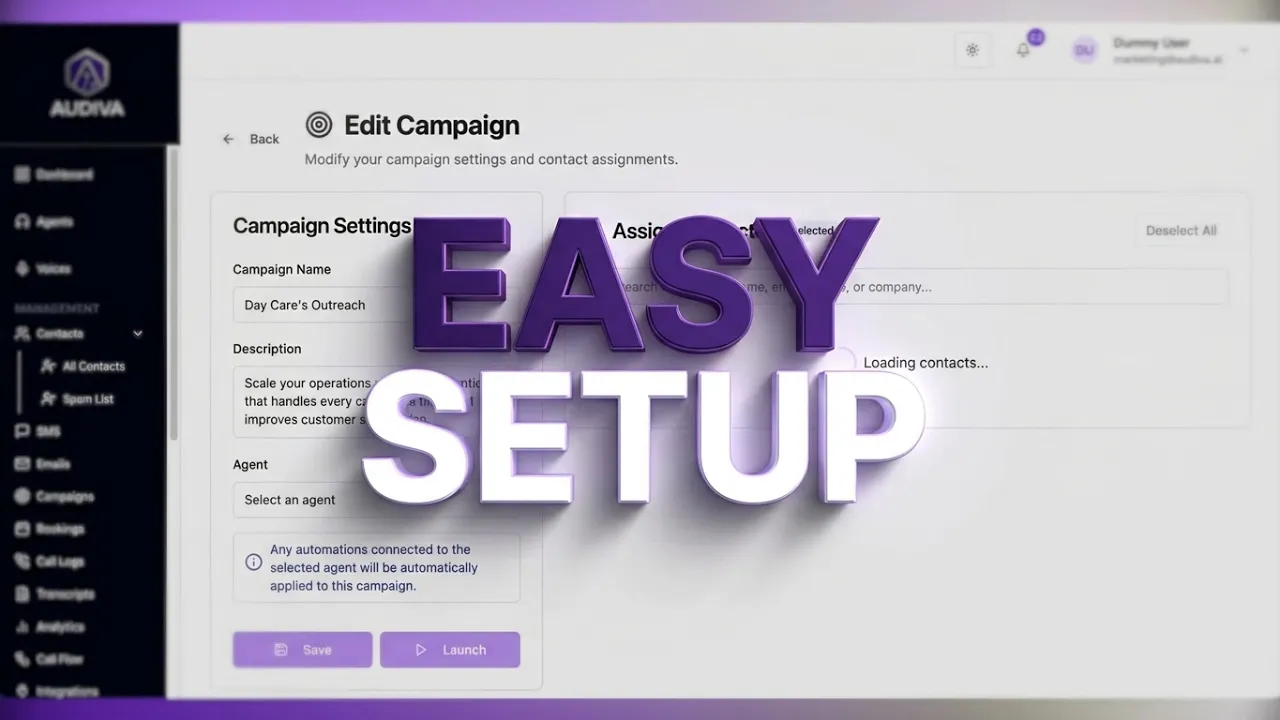
Campaign Creation & Management Workflow Guide
Learn how to streamline your workflow with a step-by-step guide to efficient campaign creation, management, tracking, and optimization.

If you've spent any meaningful time in marketing, you know the peculiar frustration of a campaign that exists in three spreadsheets, two inboxes, and a Slack thread, but nowhere coherent. Audiva AI's campaign module is designed to collapse that chaos into a single, structured workflow, from naming your initiative to watching it execute autonomously across a curated contact list.
This guide walks marketing professionals, account managers, and platform operators through the full lifecycle of desktop campaign creation: initial configuration, agent assignment, contact allocation, and live performance monitoring. Each step is grounded in what you'll actually encounter on the interface, with practical guidance on how to make each decision count.
Campaign centralization isn't merely an organizational convenience; it is the prerequisite for scalable, consistent outreach. When all campaign variables live in one place, iteration becomes systematic rather than haphazard.
Understanding Campaigns Creation
The Campaigns section of the Audiva AI desktop interface serves as a command center for outbound calling initiatives. Before any configuration begins, it's worth understanding what the dashboard communicates at a glance. Four primary metrics are surfaced immediately upon entry: total campaigns, active campaigns, total contacts enrolled, and calls completed.
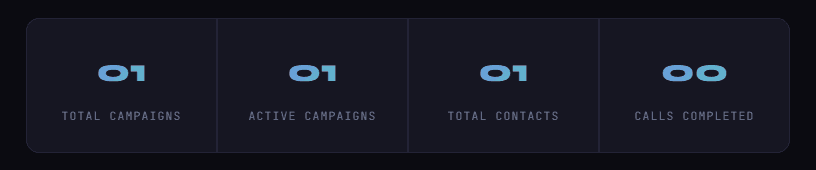
These numbers are not decorative. They constitute the operational pulse of your outreach program. A disparity between active campaigns and calls completed, for instance, may indicate a contact-assignment gap or an agent configuration issue worth investigating before scaling.
Creating a New Campaign: Step-by-Step
Navigate to Campaigns
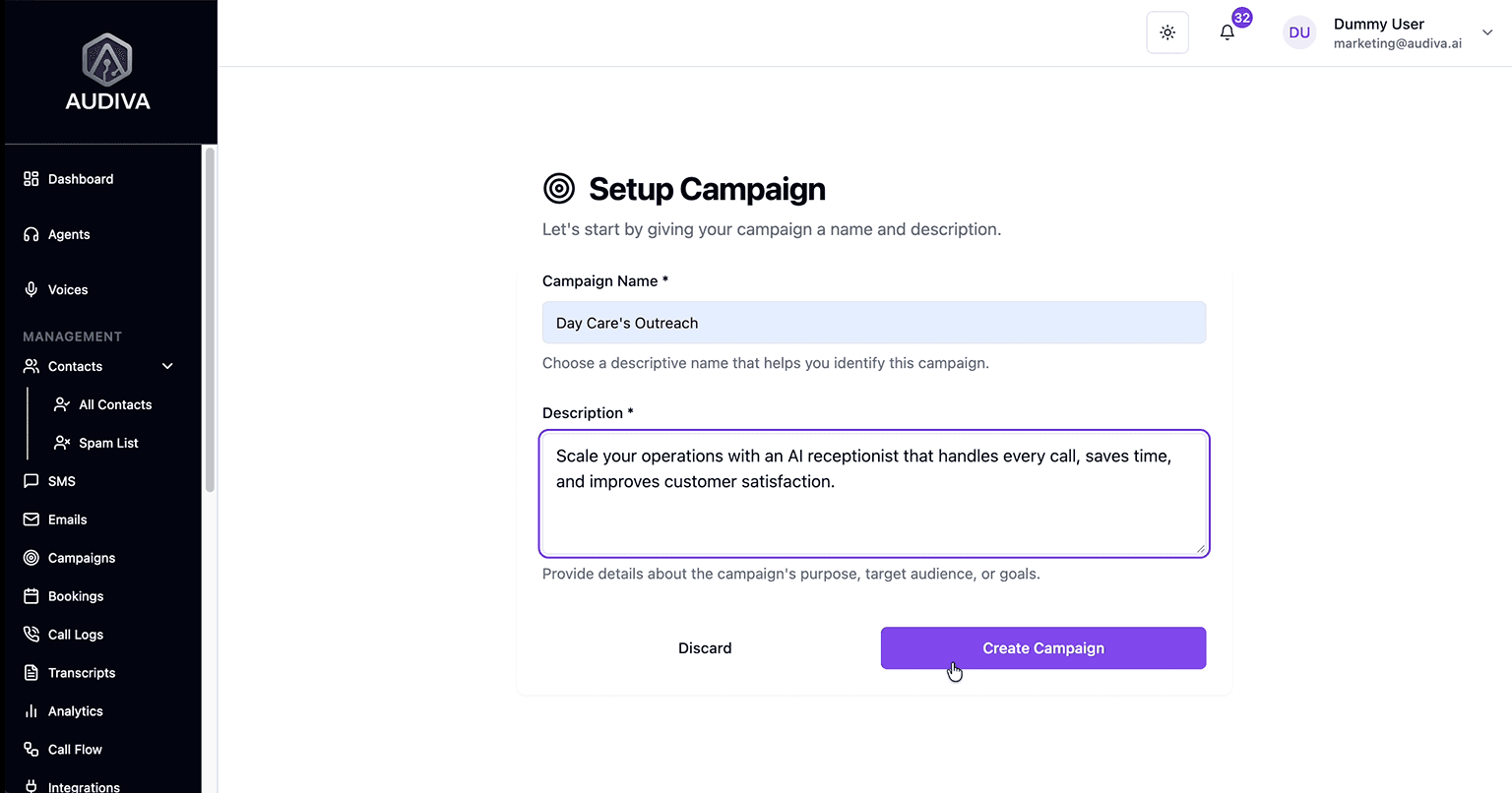
Navigation to the module is straightforward. From the main dashboard, locate the Campaigns option in the left-hand panel under the Management section, beneath Contacts. Click it to enter the campaign hub. The interface loads with either your existing campaign list or an empty state. If this is your first campaign, you'll see an empty state with a prominent "Create Your First Campaign" prompt.
Initiate a New Campaign
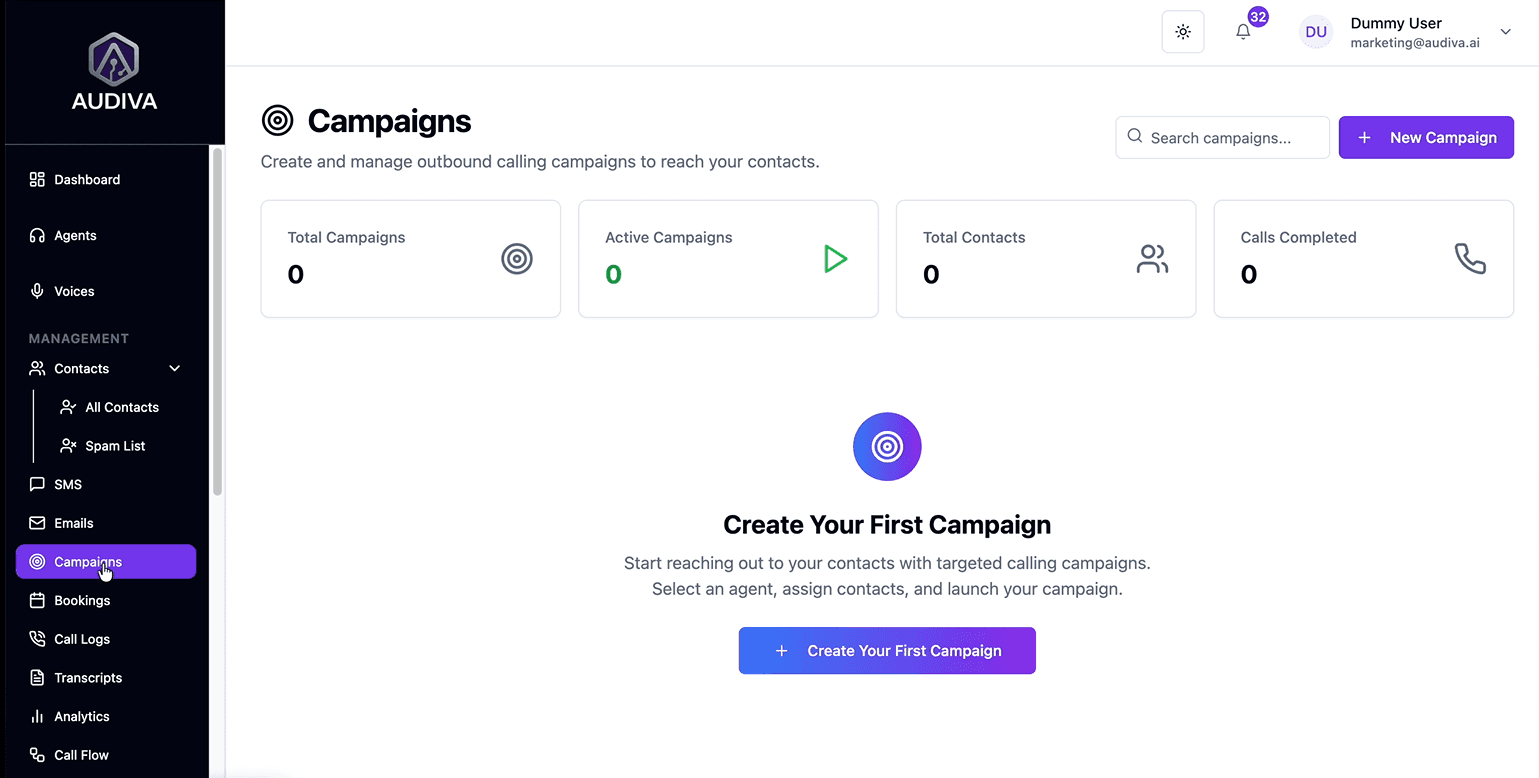
Next Click the + New Campaign button in the upper right of the Campaigns dashboard The system immediately opens the Setup Campaign screen, a clean, two-field form designed to capture your campaign's identity before any further configuration takes place.
Name Your Campaign and Add Description
Enter a campaign name that serves as a reliable identifier, not just for you today, but for any team member who opens the dashboard three months from now. Names like “Day Care Outreach”, "Celebrate Whoever You Call Mom", or “Super Bowl Sunday” are specific and functional. Avoid generic titles like Campaign 1 or Test Run etc., which accumulate into confusion at scale. Think of the name as a contract with your future self.
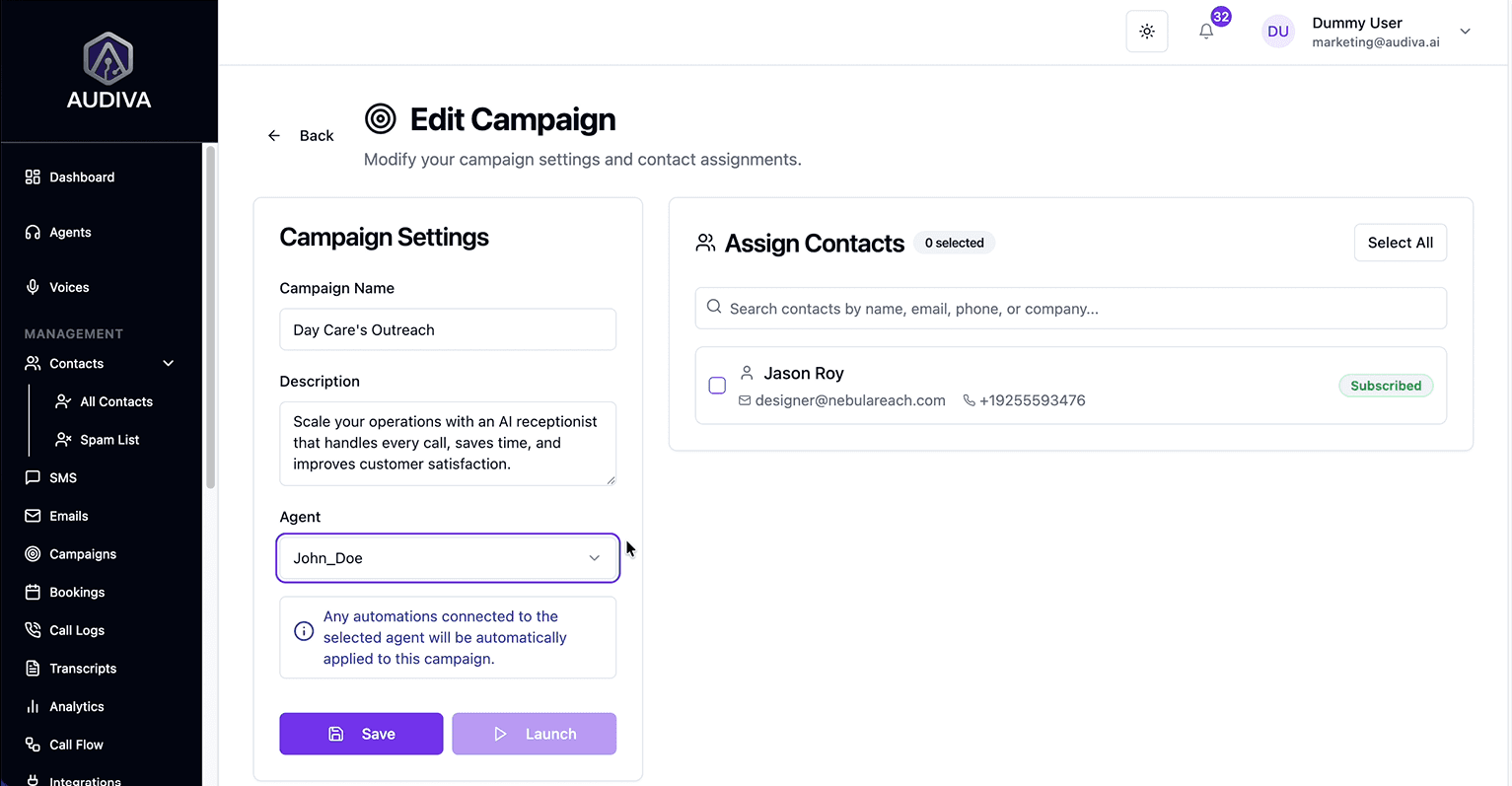
With clear and transparent names, the description field is equally important. A well-composed description articulates three things concisely: the campaign's specific purpose, its intended audience, and the primary outcome being pursued. For example, as stated in the picture below, "Scale your operations with an AI receptionist that handles every call, saves time, and improves customer satisfaction." This framing keeps the campaign's intent visible at a glance and prevents scope drift as the initiative evolves.
Select Your AI Agent and Assign Contacts
Once the campaign is created, you enter the “Edit Campaign” view, where agent assignment takes center stage. From the Agent dropdown, select the AI agent that will execute the campaign's calls. This decision carries structural weight, and any automations already connected to the selected agent are automatically inherited by the campaign.
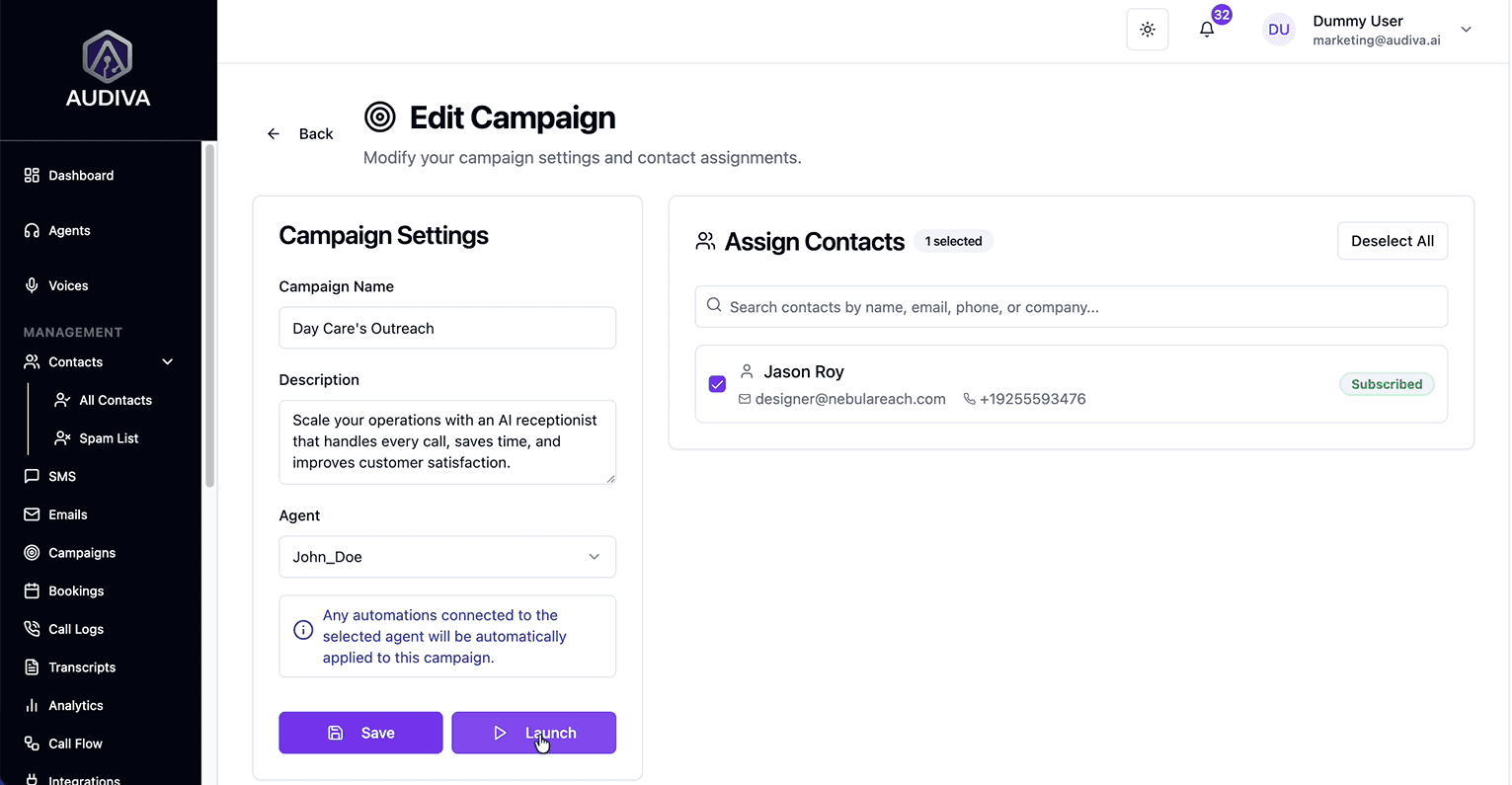
Then, assign contacts per the requirement. The “Assign Contacts” panel on the right side of the Edit Campaign view allows multi-criteria searching, i.e., by name, email address, phone number, or company. This flexibility is especially useful when dealing with large contact databases where simple name-based search falls short. Select the contacts you want included and confirm; the selected count updates in real time alongside each entry's subscription status indicator.
Save and Launch the Campaign
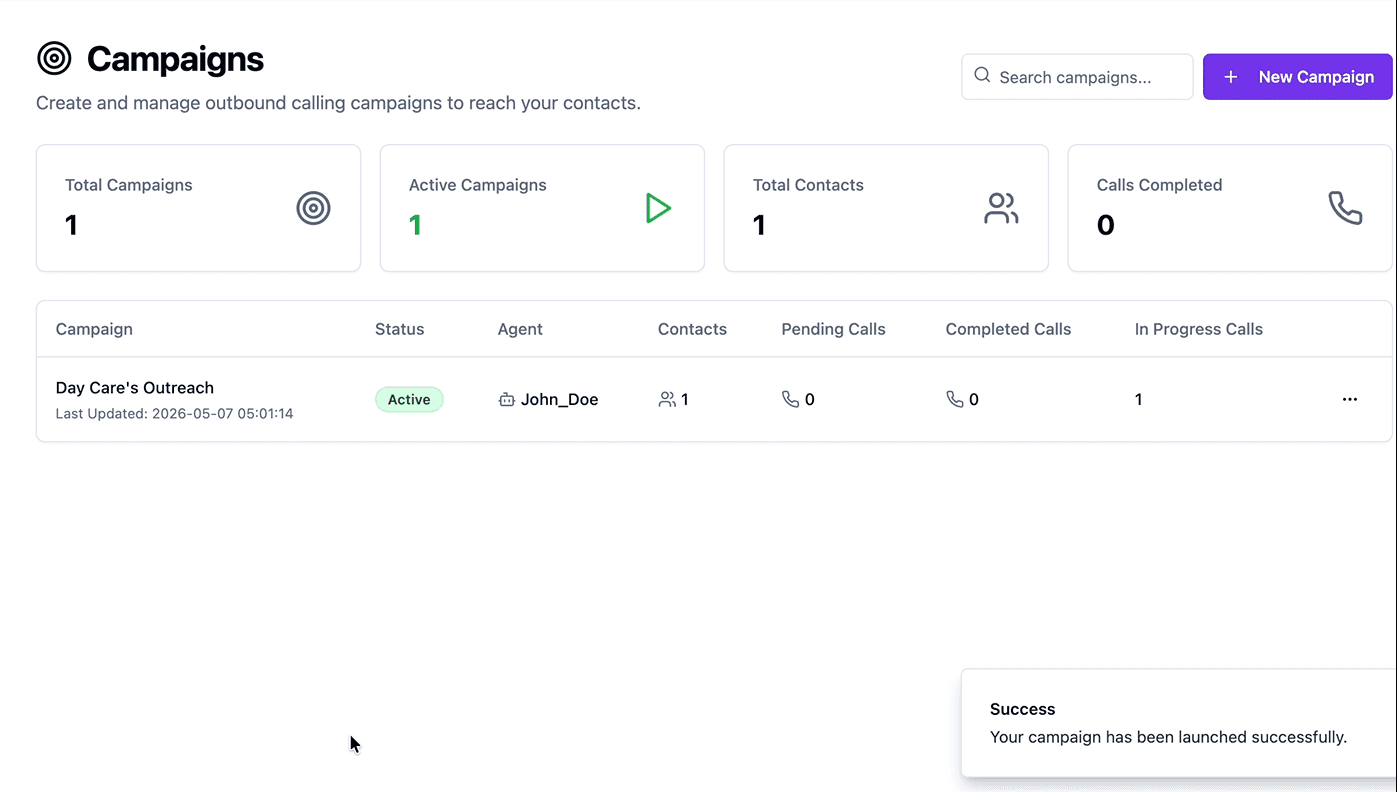
Before committing, click “Save” to preserve your configuration. When you're confident in the setup, click the “Launch” button. A success notification confirms the campaign has gone live. The dashboard immediately reflects the updated status: your campaign moves from idle to Active, and the metrics counters begin populating as calls are initiated and completed.
Monitoring Campaign Performance
Once launched, the campaign dashboard transforms into an active performance monitoring surface. Each live campaign displays its name and last updated timestamp alongside four real-time fields: Status, Agent, Contacts, Pending Calls, Completed Calls, and In Progress Calls.
The Status field is color-coded; an Active badge in green provides immediate visual confirmation that the campaign is executing. An In Progress Calls counter of 1 alongside 0 Completed Calls, for instance, tells you a call is currently being handled , a granularity that most outreach tools reserve for enterprise-tier analytics.
Post-Launch Management Options
Active campaigns are not static artefacts. The interface provides three post-launch interventions accessible from the campaign row's action menu:
Modify the campaign name, description, assigned agent, or contact list at any point during the campaign's active lifecycle. Changes take effect on subsequent calls without requiring a re-launch.
Suspend outbound calling temporarily without losing campaign data or configuration. Useful during scheduled business hours, team reviews, or when emerging market conditions warrant a temporary hold.
Permanently remove the campaign and its associated data. This action should be reserved for initiatives that have been fully retired, not for campaigns that may be reactivated under different conditions.
How to Create a Campaign in Audiva.ai?
FAQs
How do I find the campaign setup area?
Select the "Campaigns" option located in the left-hand navigation panel of your desktop interface.What information should be in the campaign description?
The description should provide a concise summary of the campaign's specific purpose, the intended audience, and the primary goals you hope to achieve.How do automations work within a campaign?
Automations are tied to the specific agent you select for the campaign. Once an agent is chosen, any automations connected to them are automatically applied to that campaign.Can I modify a campaign after it has launched?
Yes, once a campaign is active, you can perform several actions including editing the configuration, pausing the campaign, or deleting it entirely.How can I find specific contacts to add to my campaign?
You can search for and assign contacts using their name, email address, phone number, or company name.
"Ready to help our users master their marketing workflow? Use this brief to craft a detailed, SEO-optimized guide that simplifies the campaign creation process. Focus on clear, actionable steps and highlight the time-saving benefits of agent-based automation."
About The Author

Ibrahim
CEO/Founder



Background Story




Related Articles

features/24 7 Availability
Why Businesses That Answer First Win More Customers
Answer every call, day or night. Learn how AI call handling helps businesses respond faster, capture more leads, and convert more customers 24/7.
Ibrahim

features/24 7 Availability
The Hidden Cost of Missed Business Calls for a Business
Missed calls may cause significant revenue loss for a business. Thus, an AI receptionist is a must to handle all these missed calls with 24/7 automation to capture every lead.
Ibrahim

Ready to See Audiva in Action?
Reading about AI receptionists is one thing. Hearing one handle a real call is something else.